Blog

Enhanced audit log in SQL-Ledger

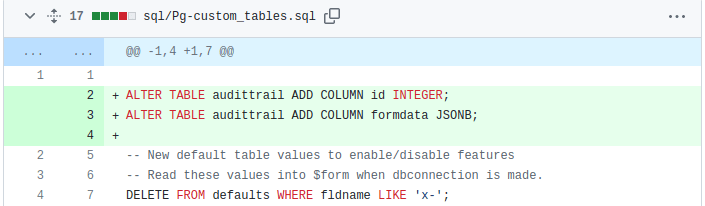
SQL-Ledger has this powerful audit log feature which records users actions (adding, editing, deletion transactions) in a database table named ‘audittrail’. Recently I had this requirement to log the transaction values into the audit table to see what has been changed. The solution I came out was to save the important column values as json in a new column formdata in the audittrail table. This new enhancements is now in testing phase with the help of a customer before it will be rolled out to all our hosting clients.

Next is to improve this code to add exception handling and also add the audit feature to the places in SQL-Ledger where it is not implemented like addition of customers and vendors and many such form.

Fixing printing without posting in SQL-Ledger

In official SQL-Ledger, it is possible to add an invoice or a POS transaction without posting it and then forgetting to post it unintentional or sometimes, intentionally, by user to commit fraud.

I have made few changes in SQL-Ledger code which prevent this:

  1. An invoice cannot be printed if it is not posted already.
  2. As much invoice lines are printed as are already posted.

Here are these code changes which you can also do in your SQL-Ledger installation to achieve this.

I intend to make few more changes to avoid the situation where user makes some changes to the invoice, prints it and then skips posting it. I have marked this plan with TODO in these code diffs.

If you have any further ideas or queries on this topic, you can share them in comments.

Cloning SQL-Ledger dataset

Sometimes you need to create a new dataset with exact same customers, vendors, items, chart etc. from an existing dataset.

There are two ways to do that:

  1. Create a blank data set, export data from existing data and then import it again in the new dataset using Import feature.
  2. Create new dataset using existing dataset as template and make adjustments.

Below I am describing second method step-by-step as gives you more accurate final results avoiding all data import issues. You need to be familiar with Linux command line as well as PostgreSQL’s psql command line too.

  1. First create new dataset using admin.pl so that new admin user is added in users/members file as well as templates folder is created. Selection of chart etc. during creation does not matter as we shall remove this database and will create again making copy of existing one.
  2. Remove the database you created above using “dropdb -U sql-ledger your-new-dbname”
  3. Recreate new database using existing database as template: “createdb -U sql-ledger your-new-dbname -T your-existing-dbname”
  4. Remove transactions from newly clone database using these psql commands: “delete from ar; delete from ap; delete from gl; delete from oe; delete from invoice; delete from inventory; delete from dpt_trans; delete from acc_trans; delete from audittrail; delete from payment;”
  5. Reset document numbers in System–Defaults menu.

As always, backup everything first. If you run into any problem, you can post your issue in our support forum referencing this post to get help.

Bootstrap for SQL-Ledger

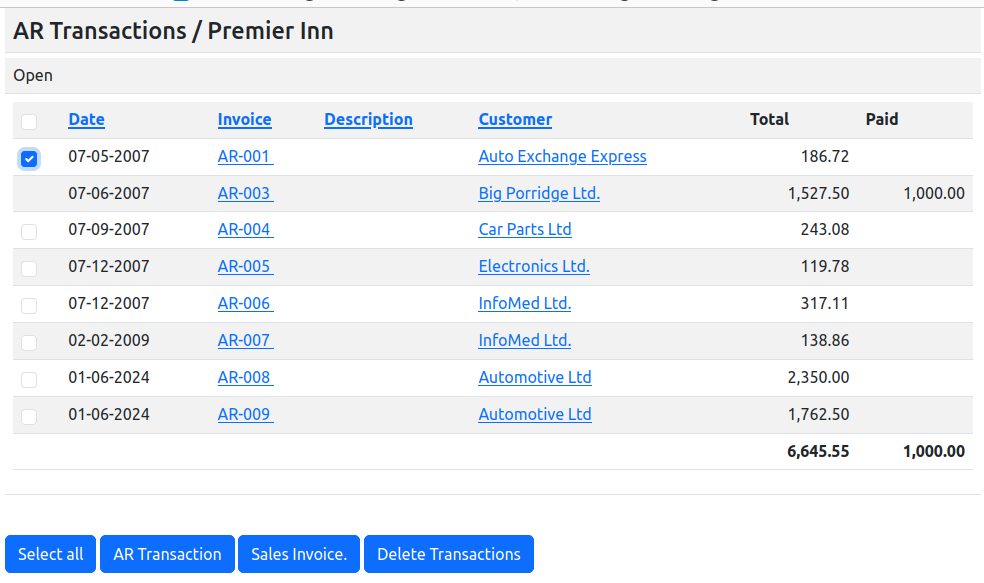
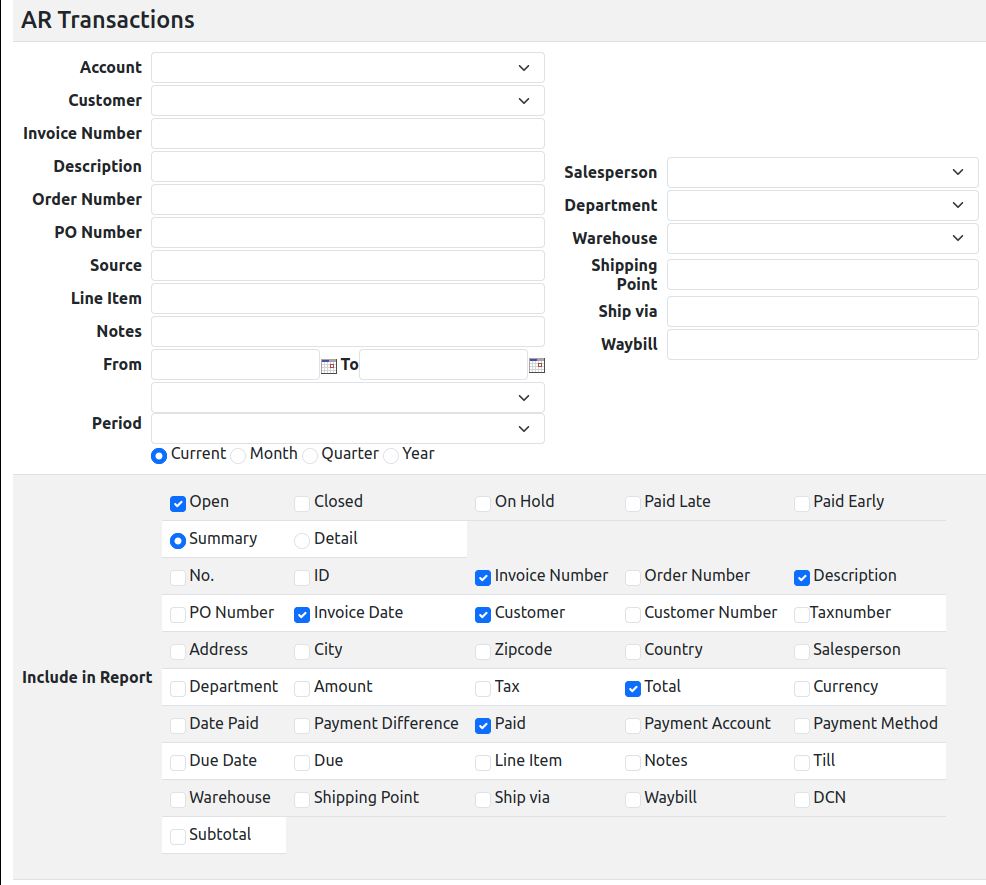
We have recently updated our SQL-Ledger installation with latest version of Bootstrap (5.3.1 at the time of this writing), a popular CSS framework. It provides two major benefits:

  • A modern application look and feel. No more complains from your users that SQL-Ledger design is old.
  • Responsive behavior of forms and reports so that now SQL-Ledger works much better on mobile devices and tablets.

Since SQL-Ledger user interface is not template driven and is generated directly from Perl code, we had to make several changes to the code to generate html better suited for Bootstrap styles. But all this effort has paid off and our users are very happy with new look and feel.

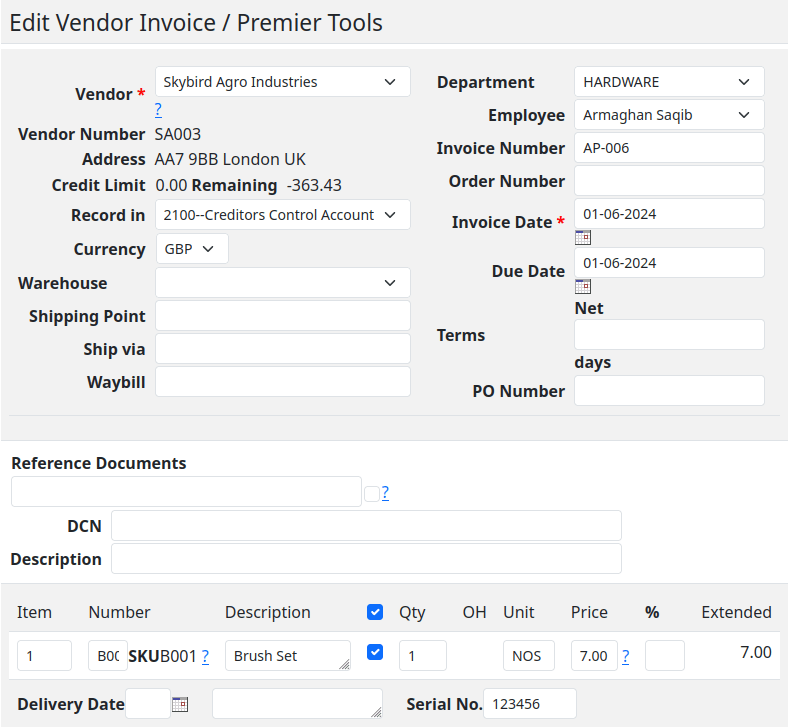
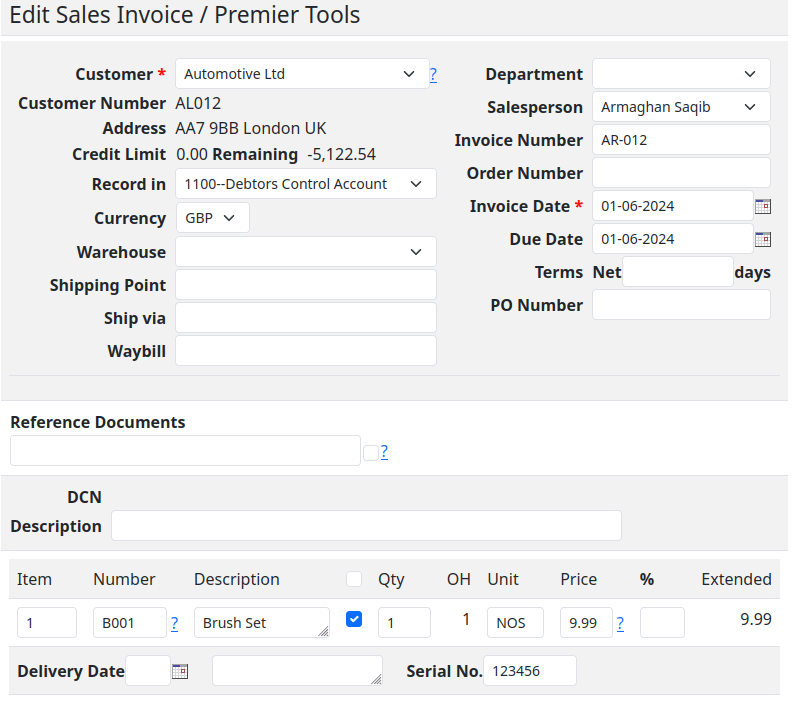
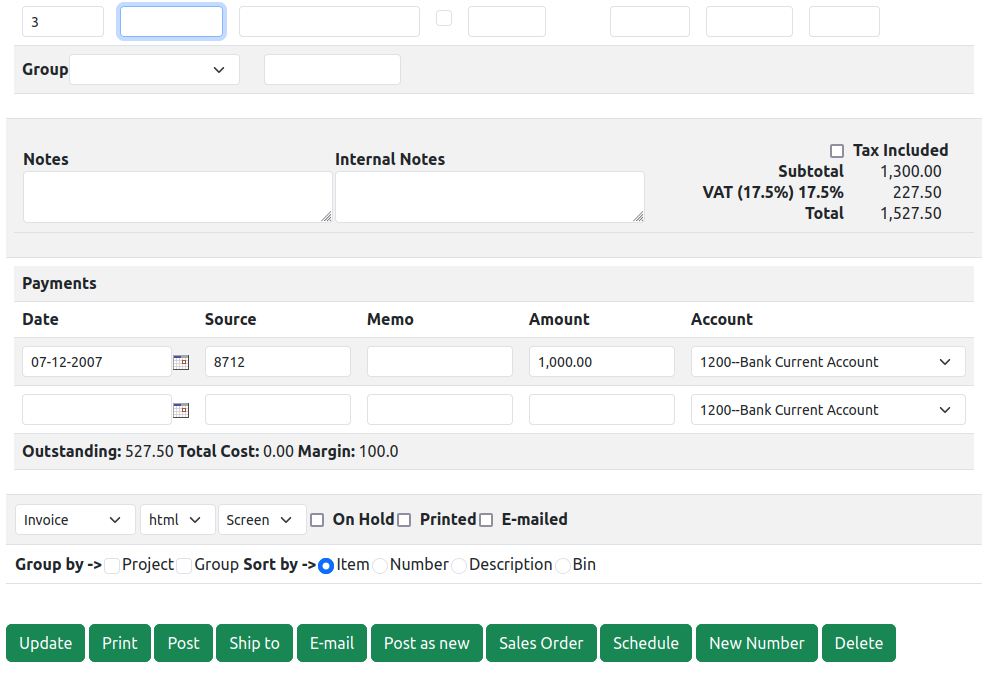
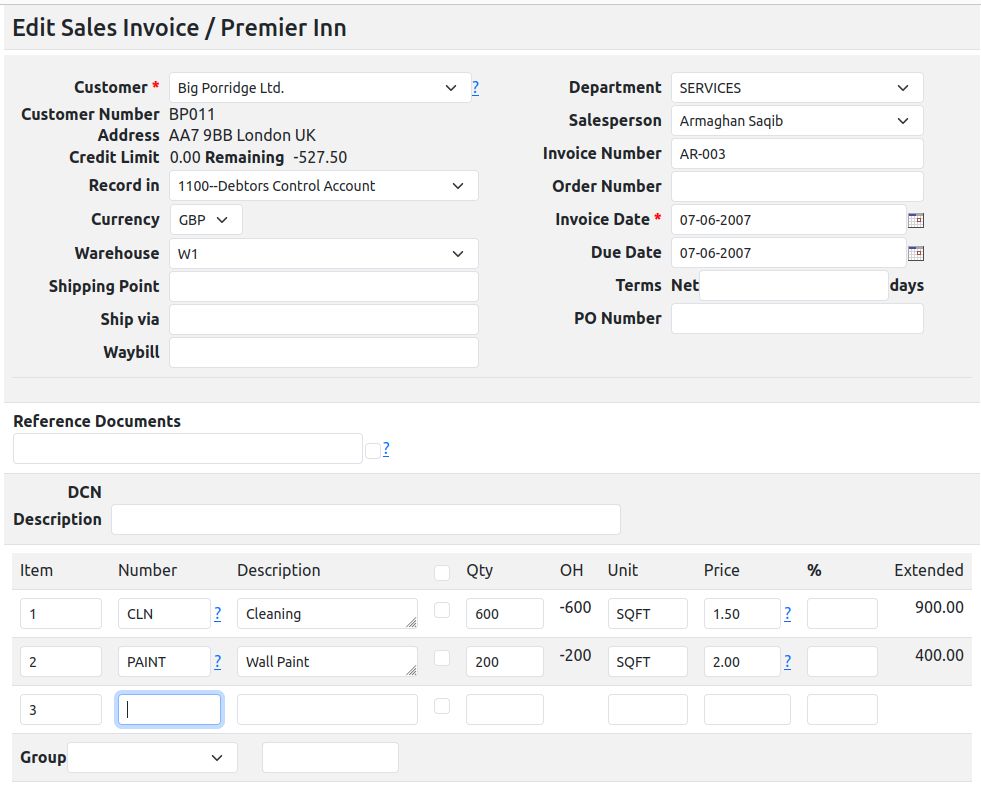
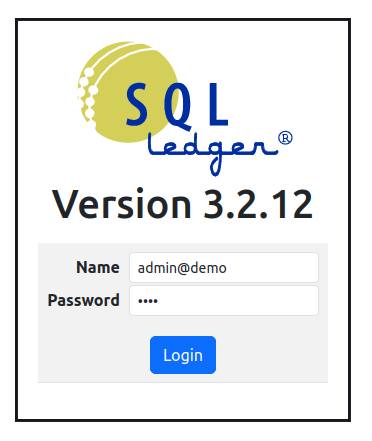
Here are few screen shots after Bootstrap 5.3.1 upgrade: